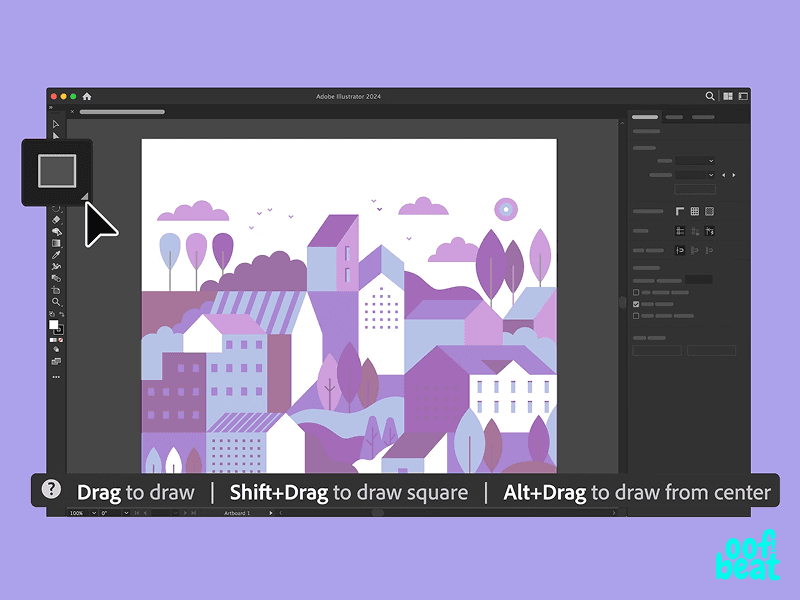
If We Have Illustrator, Why Do We Need InDesign?

If We Have Illustrator, Why Do We Need InDesign?

2 minutes read - Written by Eric Rogers

Adobe Software

inDesign

Illlustrator

Graphics

Dual Headphones
Dual Headphones
Dual Headphones
Ask any designer and you’ll hear it: “I know Illustrator… and I can use InDesign too.”

But open their files, and InDesign often looks like Illustrator with extra steps — just a bunch of pages, while powerful features like master pages, text threading, and automatic numbering sit untouched.


That’s why InDesign sometimes gets dismissed as a “lighter version” of Illustrator. But here’s the truth: Illustrator and InDesign aren’t competitors. They do very different jobs.

Illustrator is unmatched for graphics and illustration. InDesign is built for one thing: layout.

And when structure matters — brochures, catalogs, magazines, reports — InDesign wins every time.

In this blog, we’ll break down what makes InDesign unique, when to use each program, and why the two work best together.

But open their files, and InDesign often looks like Illustrator with extra steps — just a bunch of pages, while powerful features like master pages, text threading, and automatic numbering sit untouched.


That’s why InDesign sometimes gets dismissed as a “lighter version” of Illustrator. But here’s the truth: Illustrator and InDesign aren’t competitors. They do very different jobs.

Illustrator is unmatched for graphics and illustration. InDesign is built for one thing: layout.

And when structure matters — brochures, catalogs, magazines, reports — InDesign wins every time.

In this blog, we’ll break down what makes InDesign unique, when to use each program, and why the two work best together.

But open their files, and InDesign often looks like Illustrator with extra steps — just a bunch of pages, while powerful features like master pages, text threading, and automatic numbering sit untouched.


That’s why InDesign sometimes gets dismissed as a “lighter version” of Illustrator. But here’s the truth: Illustrator and InDesign aren’t competitors. They do very different jobs.

Illustrator is unmatched for graphics and illustration. InDesign is built for one thing: layout.

And when structure matters — brochures, catalogs, magazines, reports — InDesign wins every time.

In this blog, we’ll break down what makes InDesign unique, when to use each program, and why the two work best together.

Wireless

InDesign vs. Illustrator: What Sets Them Apart

Illustrator is a powerhouse for creating vector artwork — logos, icons, and detailed illustrations that scale perfectly from a business card to a billboard.

InDesign, on the other hand, is the master of structure. Here’s what it brings to the table that Illustrator doesn’t:

Effortless pagination – Handles page numbers automatically.

Master pages – Apply consistent headers, footers, or design elements across long documents.

Advanced text control – Multi-column layouts, paragraph styles, and text threading.

Built-in structure – Margins, bleeds, and grids from the start.

Print-ready output – Clean PDFs, preflight checks, and accessibility features baked in.

This is why the publishing world — from glossy magazines to annual reports — still relies on InDesign. It’s not about tradition. It’s because it works.


When to Use InDesign

InDesign shines when clarity, structure, and efficiency matter most.

  1. Multi-Page Layouts
    If your project runs more than a couple of pages, Illustrator quickly becomes painful. InDesign was built for magazines, brochures, reports, even books hundreds of pages long.

  2. Text-Heavy Designs
    Illustrator hates long text. InDesign thrives on it. With paragraph styles, text threading, and column controls, it’s perfect for newsletters, ebooks, and white papers.

  3. Bringing Assets Together
    Think of InDesign as the host. Illustrator brings the illustrations, Photoshop brings the photos, and InDesign arranges everything into a polished, cohesive layout.

  4. Workflow Efficiency
    Page numbering, indexing, templates — all automated. InDesign saves hours (and a lot of headaches).

When to Use Illustrator

Illustrator is your tool of choice when graphics, precision, and flexibility take center stage.

Vector Design – Logos, icons, branding assets.

Single-Page Graphics – Posters, flyers, business cards.

Detailed Illustrations – From sticker packs to complex editorial artwork.

It’s the ultimate canvas for visuals, but not the right place to wrangle a 50-page report.

Why Illustrator Alone Isn’t Enough

Try forcing Illustrator to do InDesign’s job, and the gaps become clear:

Margins – InDesign sets them automatically; Illustrator doesn’t.

Swatches – InDesign updates all linked colors with one click; Illustrator makes you chase them down.

Interactivity – InDesign supports interactive PDFs with hyperlinks and navigation. Illustrator doesn’t play in that space at all.

That’s why design pros know: if structure matters, InDesign is non-negotiable.

InDesign vs. Illustrator: What Sets Them Apart

Illustrator is a powerhouse for creating vector artwork — logos, icons, and detailed illustrations that scale perfectly from a business card to a billboard.

InDesign, on the other hand, is the master of structure. Here’s what it brings to the table that Illustrator doesn’t:

Effortless pagination – Handles page numbers automatically.

Master pages – Apply consistent headers, footers, or design elements across long documents.

Advanced text control – Multi-column layouts, paragraph styles, and text threading.

Built-in structure – Margins, bleeds, and grids from the start.

Print-ready output – Clean PDFs, preflight checks, and accessibility features baked in.

This is why the publishing world — from glossy magazines to annual reports — still relies on InDesign. It’s not about tradition. It’s because it works.


When to Use InDesign

InDesign shines when clarity, structure, and efficiency matter most.

  1. Multi-Page Layouts
    If your project runs more than a couple of pages, Illustrator quickly becomes painful. InDesign was built for magazines, brochures, reports, even books hundreds of pages long.

  2. Text-Heavy Designs
    Illustrator hates long text. InDesign thrives on it. With paragraph styles, text threading, and column controls, it’s perfect for newsletters, ebooks, and white papers.

  3. Bringing Assets Together
    Think of InDesign as the host. Illustrator brings the illustrations, Photoshop brings the photos, and InDesign arranges everything into a polished, cohesive layout.

  4. Workflow Efficiency
    Page numbering, indexing, templates — all automated. InDesign saves hours (and a lot of headaches).

When to Use Illustrator

Illustrator is your tool of choice when graphics, precision, and flexibility take center stage.

Vector Design – Logos, icons, branding assets.

Single-Page Graphics – Posters, flyers, business cards.

Detailed Illustrations – From sticker packs to complex editorial artwork.

It’s the ultimate canvas for visuals, but not the right place to wrangle a 50-page report.

Why Illustrator Alone Isn’t Enough

Try forcing Illustrator to do InDesign’s job, and the gaps become clear:

Margins – InDesign sets them automatically; Illustrator doesn’t.

Swatches – InDesign updates all linked colors with one click; Illustrator makes you chase them down.

Interactivity – InDesign supports interactive PDFs with hyperlinks and navigation. Illustrator doesn’t play in that space at all.

That’s why design pros know: if structure matters, InDesign is non-negotiable.

InDesign vs. Illustrator: What Sets Them Apart

Illustrator is a powerhouse for creating vector artwork — logos, icons, and detailed illustrations that scale perfectly from a business card to a billboard.

InDesign, on the other hand, is the master of structure. Here’s what it brings to the table that Illustrator doesn’t:

Effortless pagination – Handles page numbers automatically.

Master pages – Apply consistent headers, footers, or design elements across long documents.

Advanced text control – Multi-column layouts, paragraph styles, and text threading.

Built-in structure – Margins, bleeds, and grids from the start.

Print-ready output – Clean PDFs, preflight checks, and accessibility features baked in.

This is why the publishing world — from glossy magazines to annual reports — still relies on InDesign. It’s not about tradition. It’s because it works.


When to Use InDesign

InDesign shines when clarity, structure, and efficiency matter most.

  1. Multi-Page Layouts
    If your project runs more than a couple of pages, Illustrator quickly becomes painful. InDesign was built for magazines, brochures, reports, even books hundreds of pages long.

  2. Text-Heavy Designs
    Illustrator hates long text. InDesign thrives on it. With paragraph styles, text threading, and column controls, it’s perfect for newsletters, ebooks, and white papers.

  3. Bringing Assets Together
    Think of InDesign as the host. Illustrator brings the illustrations, Photoshop brings the photos, and InDesign arranges everything into a polished, cohesive layout.

  4. Workflow Efficiency
    Page numbering, indexing, templates — all automated. InDesign saves hours (and a lot of headaches).

When to Use Illustrator

Illustrator is your tool of choice when graphics, precision, and flexibility take center stage.

Vector Design – Logos, icons, branding assets.

Single-Page Graphics – Posters, flyers, business cards.

Detailed Illustrations – From sticker packs to complex editorial artwork.

It’s the ultimate canvas for visuals, but not the right place to wrangle a 50-page report.

Why Illustrator Alone Isn’t Enough

Try forcing Illustrator to do InDesign’s job, and the gaps become clear:

Margins – InDesign sets them automatically; Illustrator doesn’t.

Swatches – InDesign updates all linked colors with one click; Illustrator makes you chase them down.

Interactivity – InDesign supports interactive PDFs with hyperlinks and navigation. Illustrator doesn’t play in that space at all.

That’s why design pros know: if structure matters, InDesign is non-negotiable.

How Illustrator and InDesign Work Together

Here’s the secret: Illustrator and InDesign aren’t rivals. They’re teammates.

Illustrator creates the artwork — logos, graphics, icons, infographics.

InDesign assembles everything into layouts — brochures, catalogs, presentations, magazines.

The combo means you get stunning visuals and a professional, functional structure that works across print and digital.

InDesign + Illustrator: Better Together

So, do you really need InDesign if you already have Illustrator? Absolutely.

One gives you creative firepower. The other brings order and polish. Together, they’re unbeatable.

At Oofbeat, we know when to use which — and more importantly, how to combine them for branding that looks good and works flawlessly.

👉 Need a brochure, catalog, or brand report designed to perfection? Let’s talk.

Here’s the secret: Illustrator and InDesign aren’t rivals. They’re teammates.

Illustrator creates the artwork — logos, graphics, icons, infographics.

InDesign assembles everything into layouts — brochures, catalogs, presentations, magazines.

The combo means you get stunning visuals and a professional, functional structure that works across print and digital.

InDesign + Illustrator: Better Together

So, do you really need InDesign if you already have Illustrator? Absolutely.

One gives you creative firepower. The other brings order and polish. Together, they’re unbeatable.

At Oofbeat, we know when to use which — and more importantly, how to combine them for branding that looks good and works flawlessly.

👉 Need a brochure, catalog, or brand report designed to perfection? Let’s talk.
Here’s the secret: Illustrator and InDesign aren’t rivals. They’re teammates.

Illustrator creates the artwork — logos, graphics, icons, infographics.

InDesign assembles everything into layouts — brochures, catalogs, presentations, magazines.

The combo means you get stunning visuals and a professional, functional structure that works across print and digital.

InDesign + Illustrator: Better Together

So, do you really need InDesign if you already have Illustrator? Absolutely.

One gives you creative firepower. The other brings order and polish. Together, they’re unbeatable.

At Oofbeat, we know when to use which — and more importantly, how to combine them for branding that looks good and works flawlessly.

👉 Need a brochure, catalog, or brand report designed to perfection? Let’s talk.

ALSO VIEW MORE WORKS
ALSO VIEW MORE BLOGS
Frequently
Frequently
Asked Questions
Questions
Asked Question

Do you do both design and development?

Do you do both design and development?

Will you support me after the project is done?

Who do you work with?

How reliable are your services?

Do you do both design and development?

Do you do both design and development?

Will you support me after the project is done?

Who do you work with?

How reliable are your services?

Do you do both design and development?

Do you do both design and development?

Will you support me after the project is done?

Who do you work with?

How reliable are your services?